Preparou Aprovou, Driving Exam Practice
Preparing for a driving exam can feel like working through an endless bank of questions. Getting an answer right is useful, but understanding why it is right is what makes the next question easier.
Preparou Aprovou is a mobile app for learner drivers in Mozambique. It brings together lessons, practice questions and a trail of exams, with short interactions and visible progress inspired by language-learning apps such as Duolingo.
The goal is to make studying something you can return to, one exercise at a time. The app supports preparation for a driving licence; completing its exercises is separate from passing the official exam.
Choose the journey before the first question
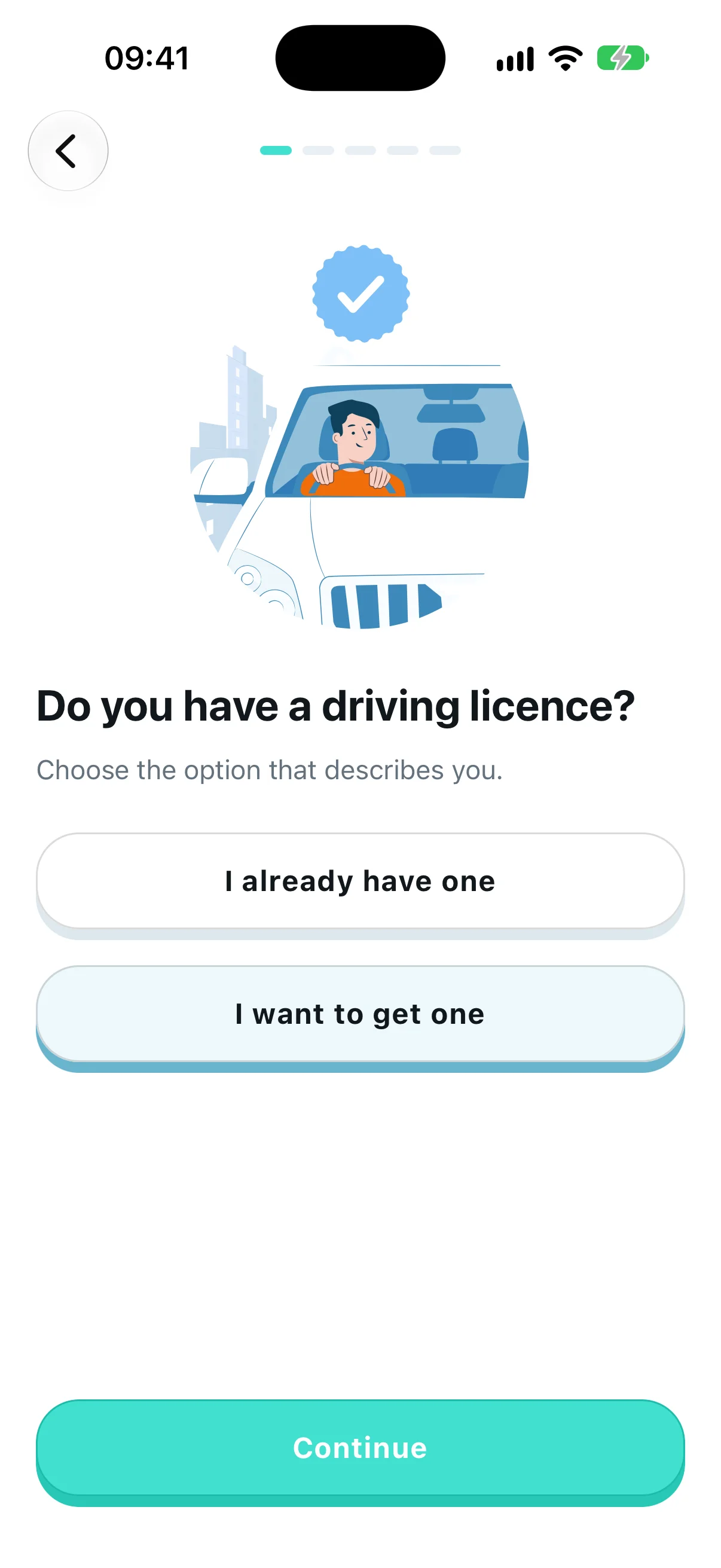
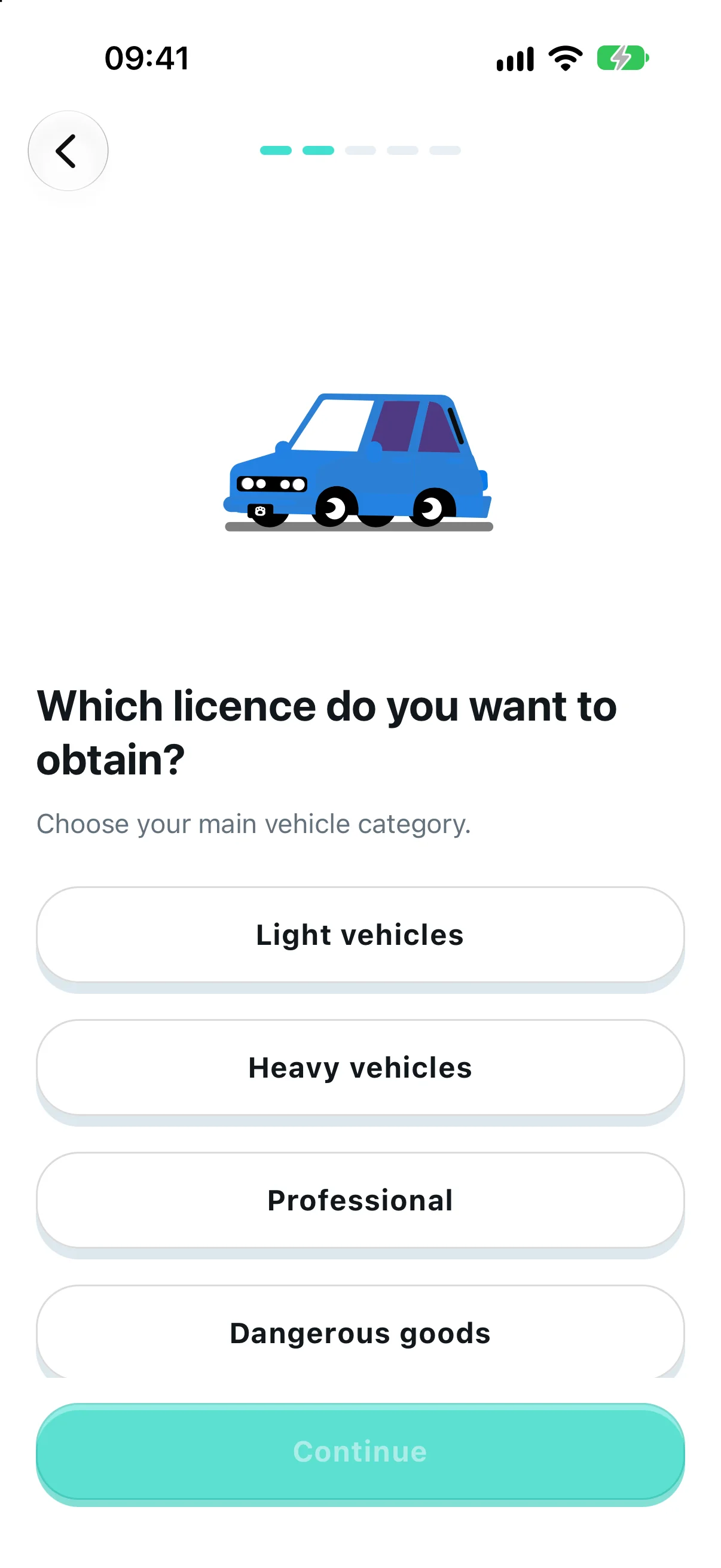
Onboarding asks whether the learner already has a licence, which vehicle category they want to study, and how they prefer to practise. Each decision has its own screen, leaving room for a clear question and a small animated illustration.
The category choice connects setup to the exam trail. Someone preparing for light vehicles has a different starting point from someone adding a professional category.
Let the first exercise explain the app
The setup leads into a short demonstration exercise. Rather than explaining every control in advance, the learner can choose an answer, check the feedback and move on to the next question.
There are two distinct ways to use the question bank. Practice mode gives feedback as you go. Exam mode holds the result until the end, so the learner can answer without seeing each correction immediately.
The first exercise is a demonstration. It gives someone a place to learn the controls before starting a scored assessment.
Give progress a place on the map
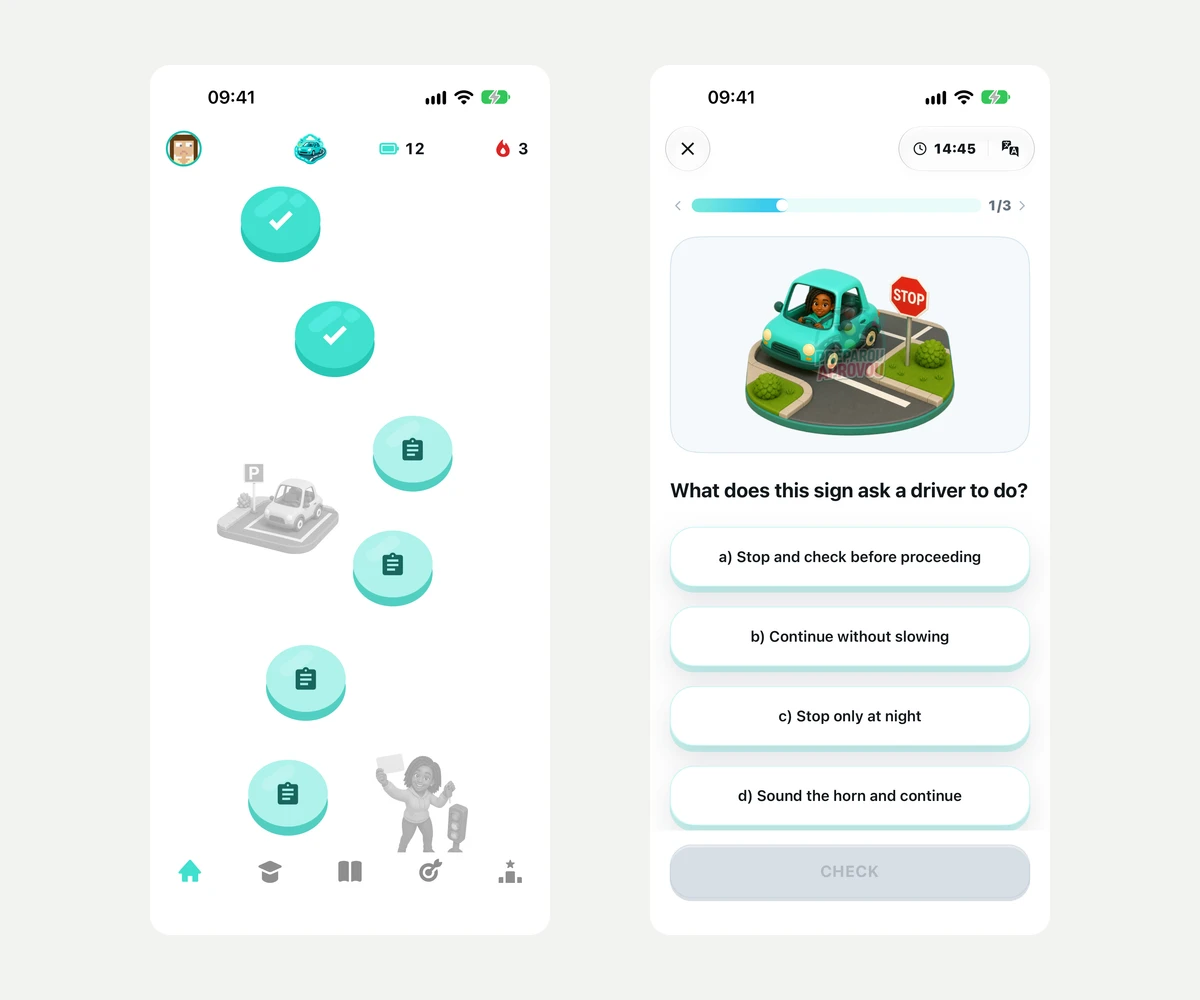
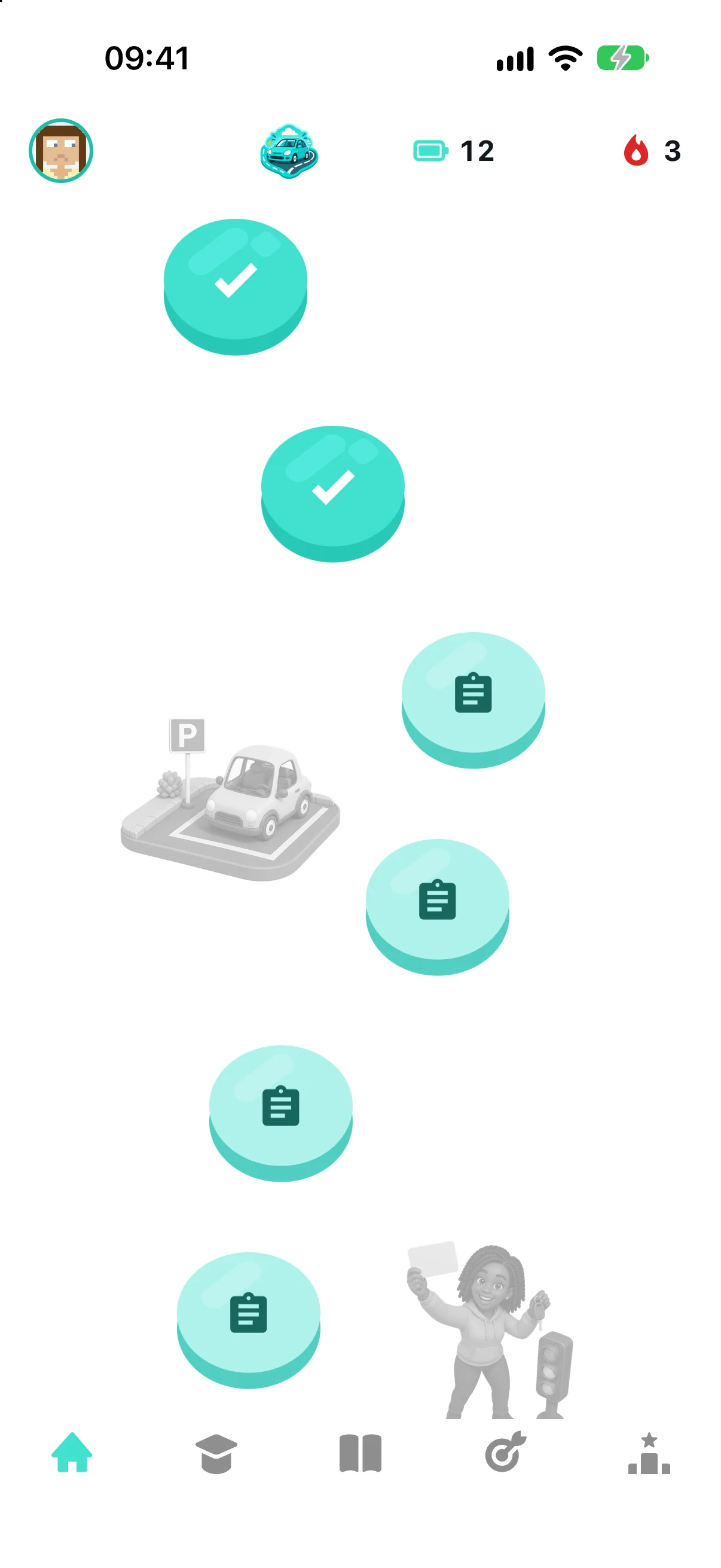
The home screen turns the exam catalogue into a winding trail. Completed nodes, available exams and the current position have different treatments, so the learner can see where they have been and what to open next.
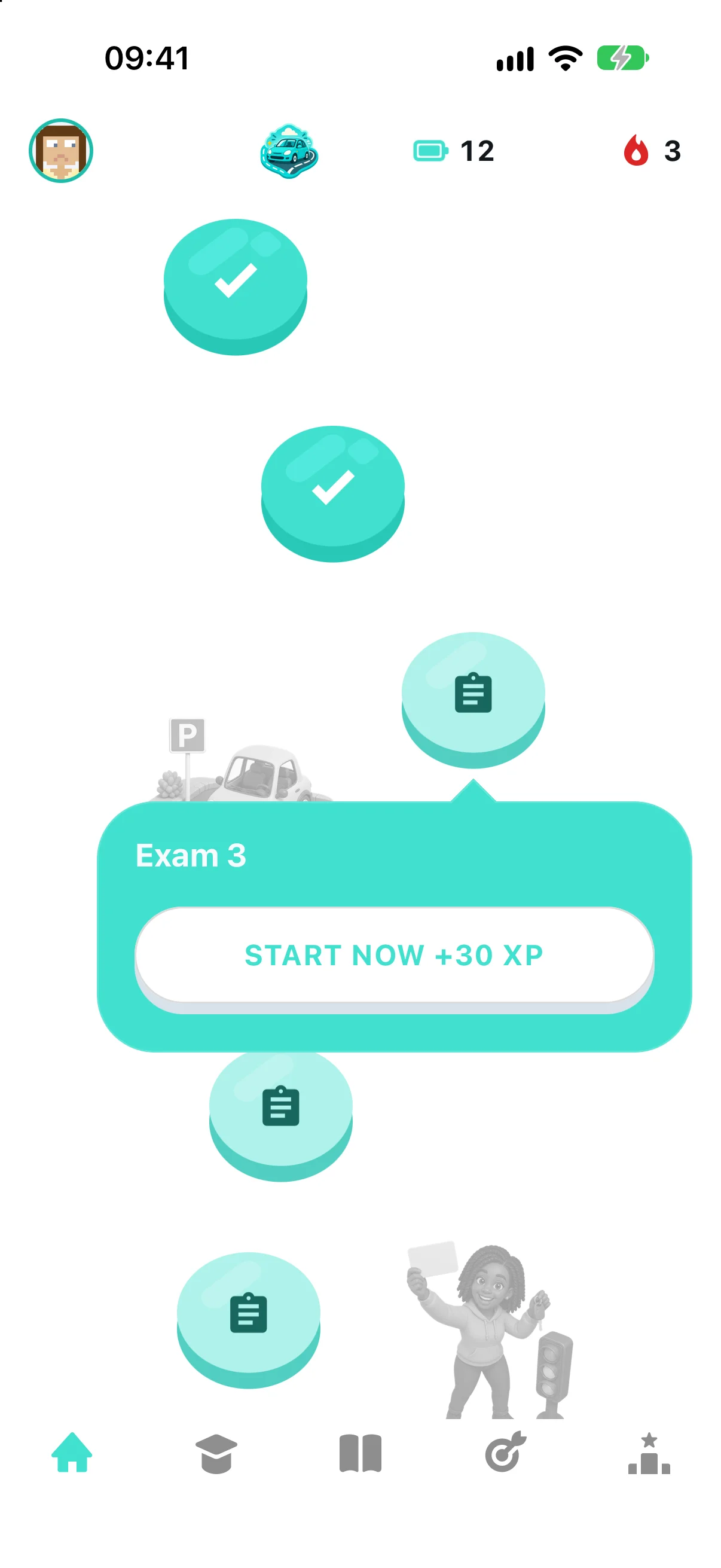
Road signs, vehicles and roadside scenes give the path a connection to the subject. Tapping a node opens its action card; the map stays behind it, keeping the next exercise in context.
Follow an exam from start to finish
An exam begins on the trail. Open a node, start the session, work through the questions and finish to see the result. The recording below follows that whole sequence in exam mode.
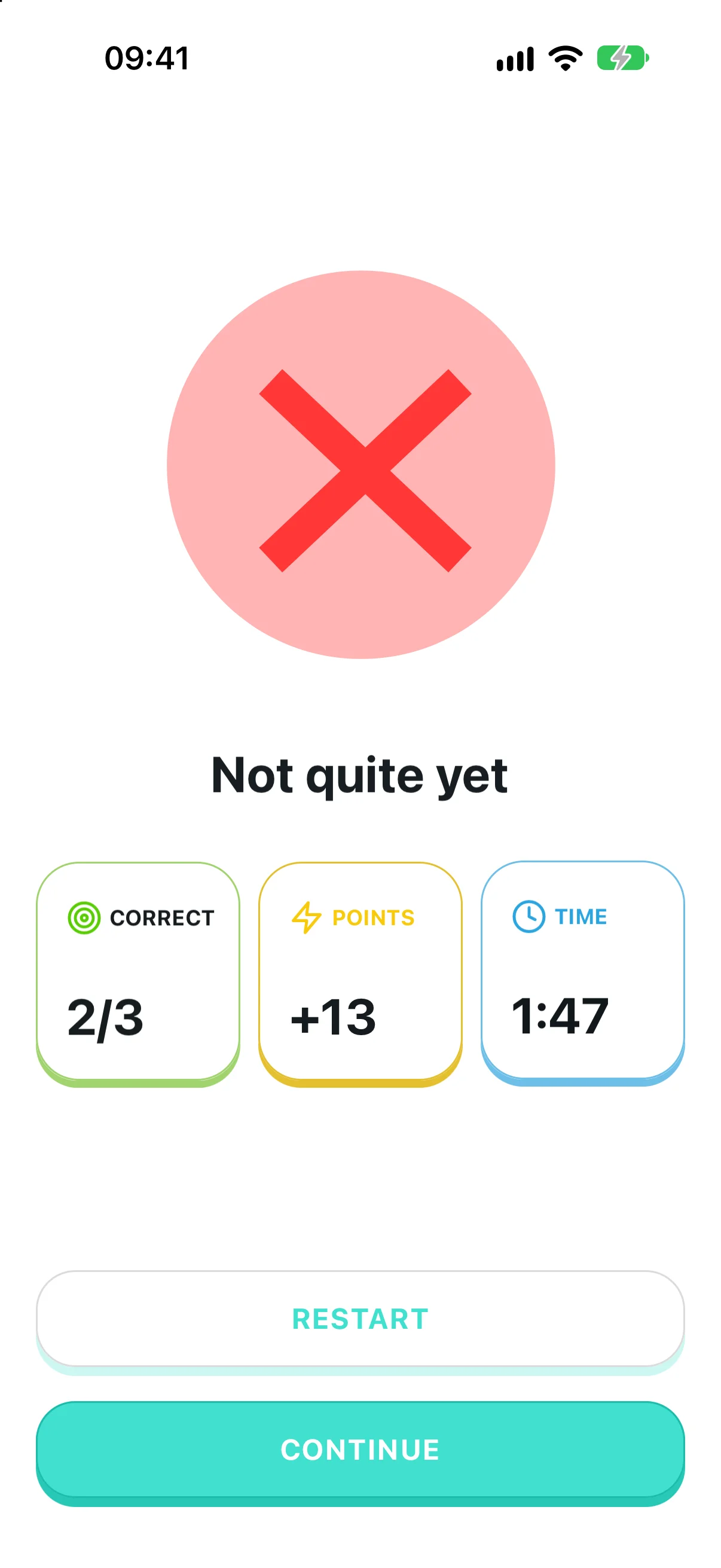
Answers stay selected as the learner moves forward, but corrections wait until the end. A progress bar and question count show how much remains; the result screen then brings together correct answers, points and elapsed time.
Make the answer a starting point
An exercise gives the question and its answer options the main space. After checking an answer in practice mode, the learner sees feedback and can open an explanation before continuing.
A correction is more useful when it explains the decision. The explanation belongs next to the question, where the learner can relate it to the situation they just considered.
The small example below lets you try the difference between the two feedback modes. It simplifies the mobile screen to one question so that the timing of the result is easy to compare.

What does this sign ask a driver to do?
Spot a hazard before choosing a response
Some decisions depend on noticing a change over time. Interactive videos ask the learner to watch a driving scene and tap when a hazard develops. Identifying the moment pauses the scene and opens a question about how to respond.
This separates observation from the next decision: first notice the danger, then choose an action. Tapping too early or too late gives feedback, and the sample exercise ends after three missed attempts.
Try the excerpt below. Start the clip, watch the side road, and tap the video or the hazard button when you see a developing danger. Then choose a response. Keyboard users can use the same buttons with Enter or Space.
Learn the subject behind the question
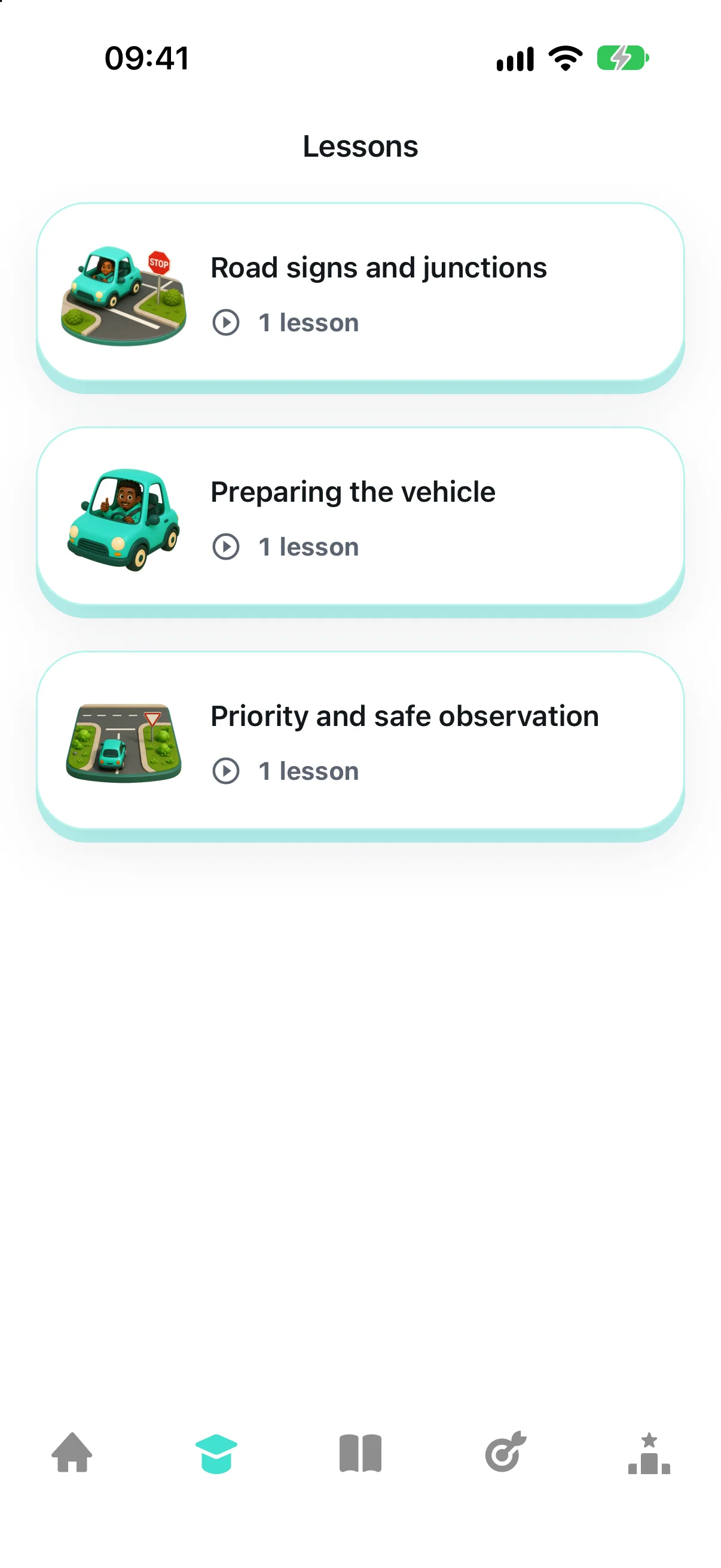
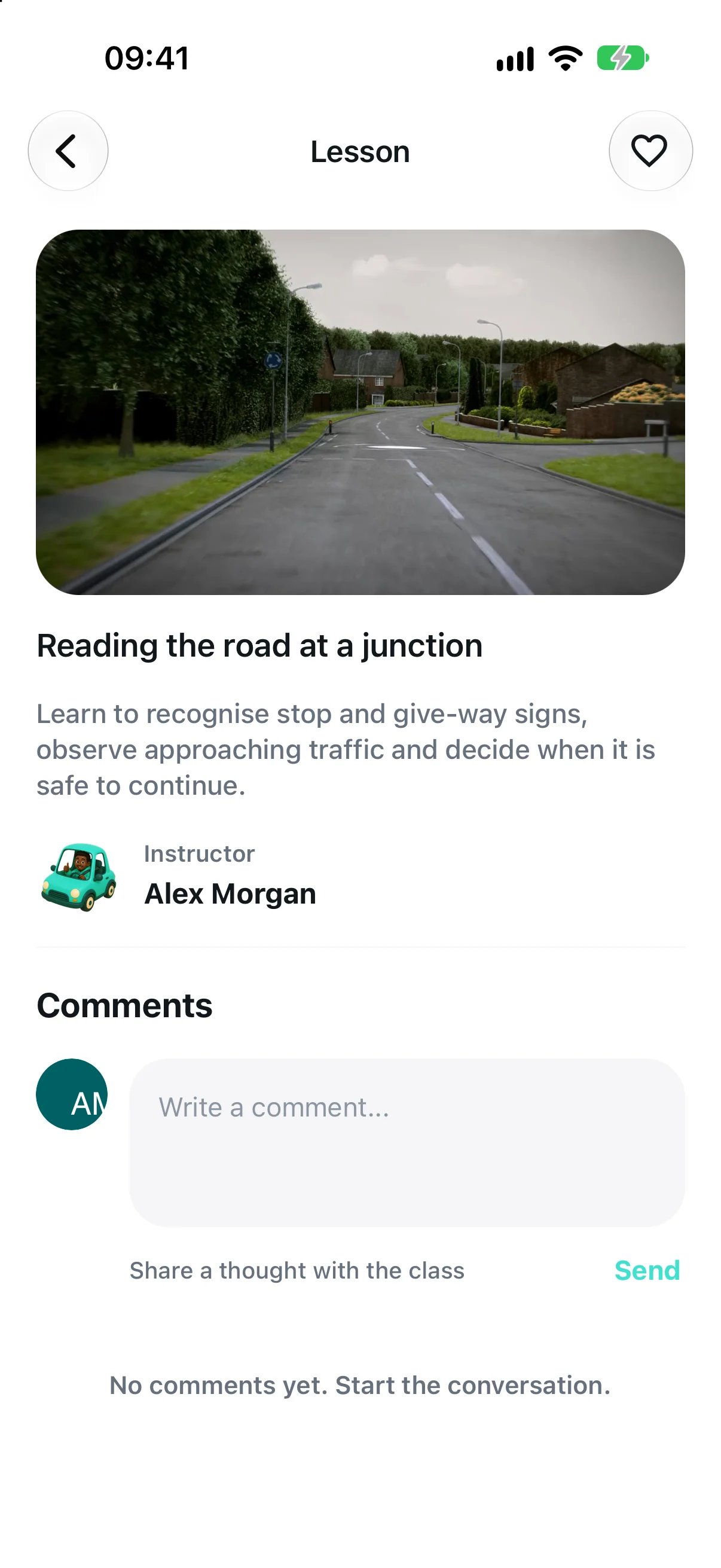
Lessons provide a route back to the material when repeated testing is not enough. A module groups related lessons; opening one brings together the video, its description, the instructor and a discussion area.
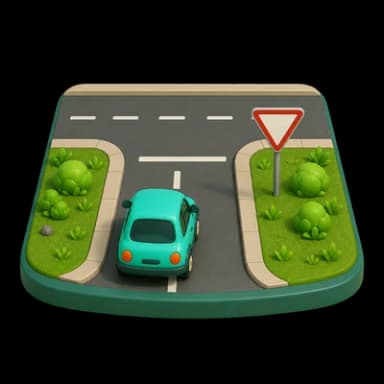

Keep the quieter moments understandable
Loading placeholders reserve space for the lesson catalogue while it arrives. They make the transition into a populated list easier to follow without introducing another screen to dismiss.
A discussion with no replies is a different situation: nothing is being loaded. The empty discussion on the lesson screen above offers a place to start the conversation. The recording below shows the catalogue moving from placeholders to content.
See where your points place you
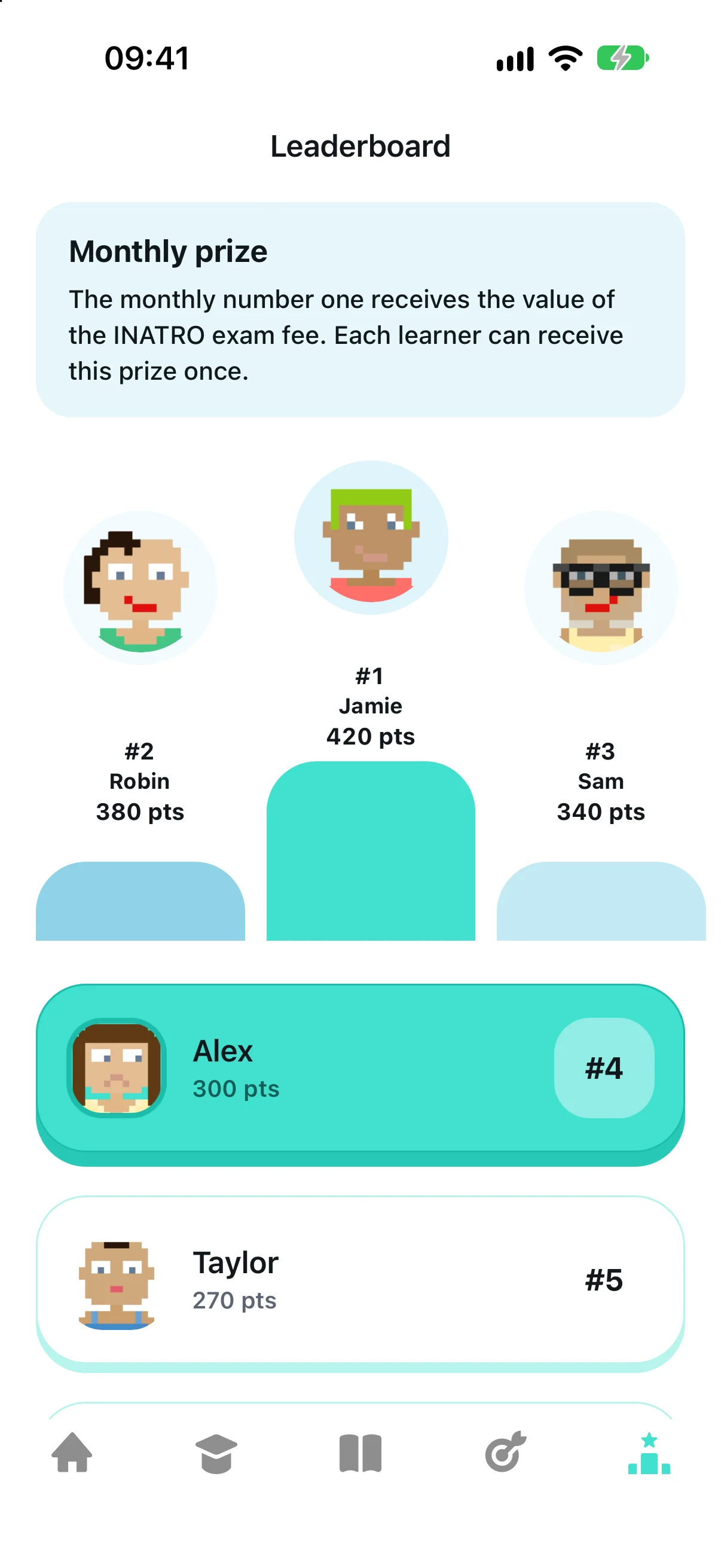
The monthly leaderboard gives points a shared context. The three highest scores sit on a podium, with the remaining learners listed below. Your own row is highlighted, making it easy to find your position without scanning every name.
The screen also includes a card explaining the monthly exam-fee prize.
Track completed exercises
The trail records completed exercises alongside energy, experience points and streaks. After a practice session, the result shows correct answers and points earned, with options to restart or continue.
These indicators track activity in the app; they do not measure readiness to drive on the road.