NutriAgenda, AI Meal Planner
Deciding what to eat involves more than choosing a recipe. There is what you like, what is already in the kitchen, how much time you have, and who else is eating with you.
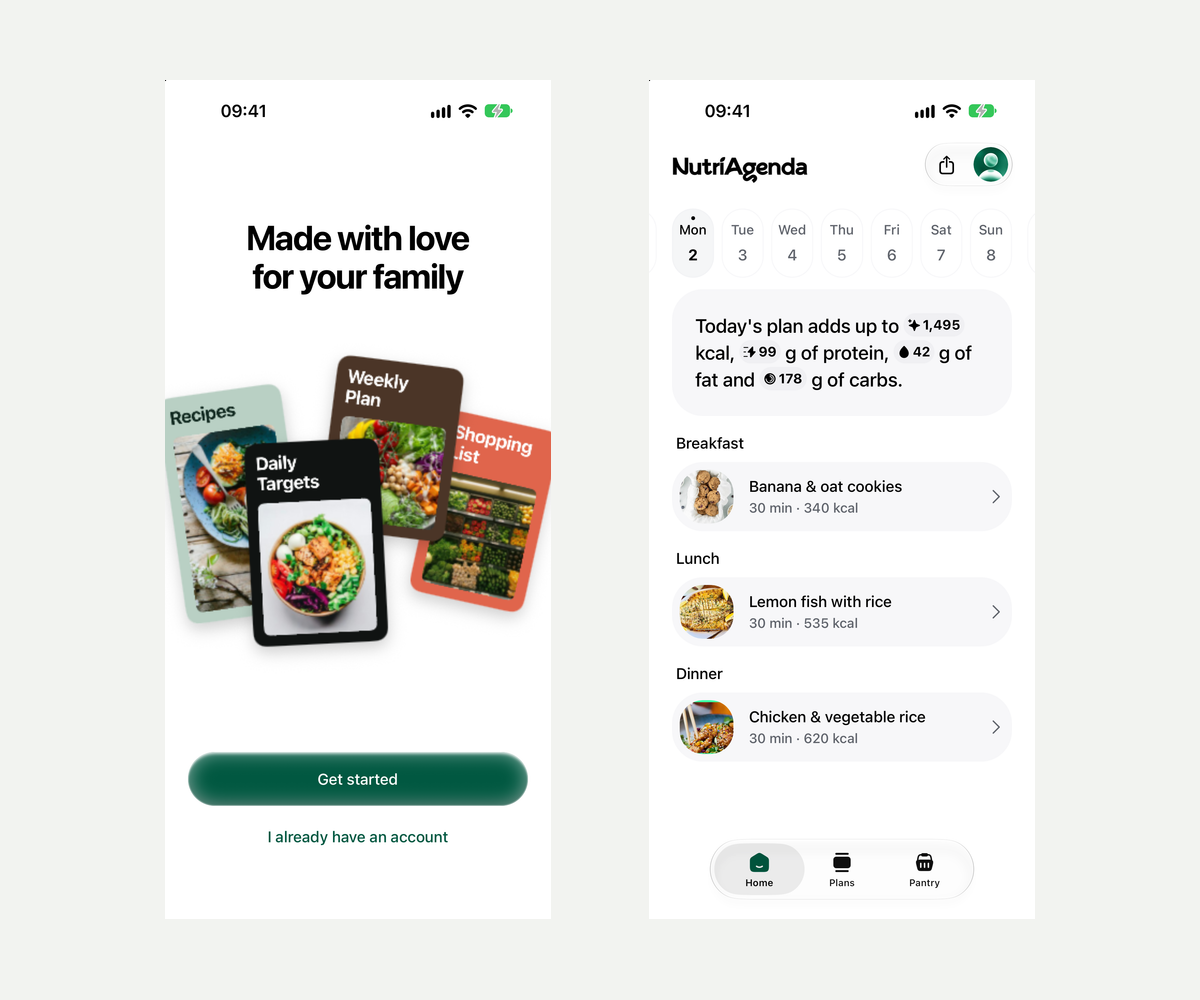
NutriAgenda is a mobile app that brings those decisions together. Nutri, its AI assistant, helps create a meal plan from your preferences and everyday constraints. The plan then connects to recipes, nutritional information, a pantry and a shopping list.
The aim is to make a plan you can actually follow, from deciding to cooking.
Start with your food preferences
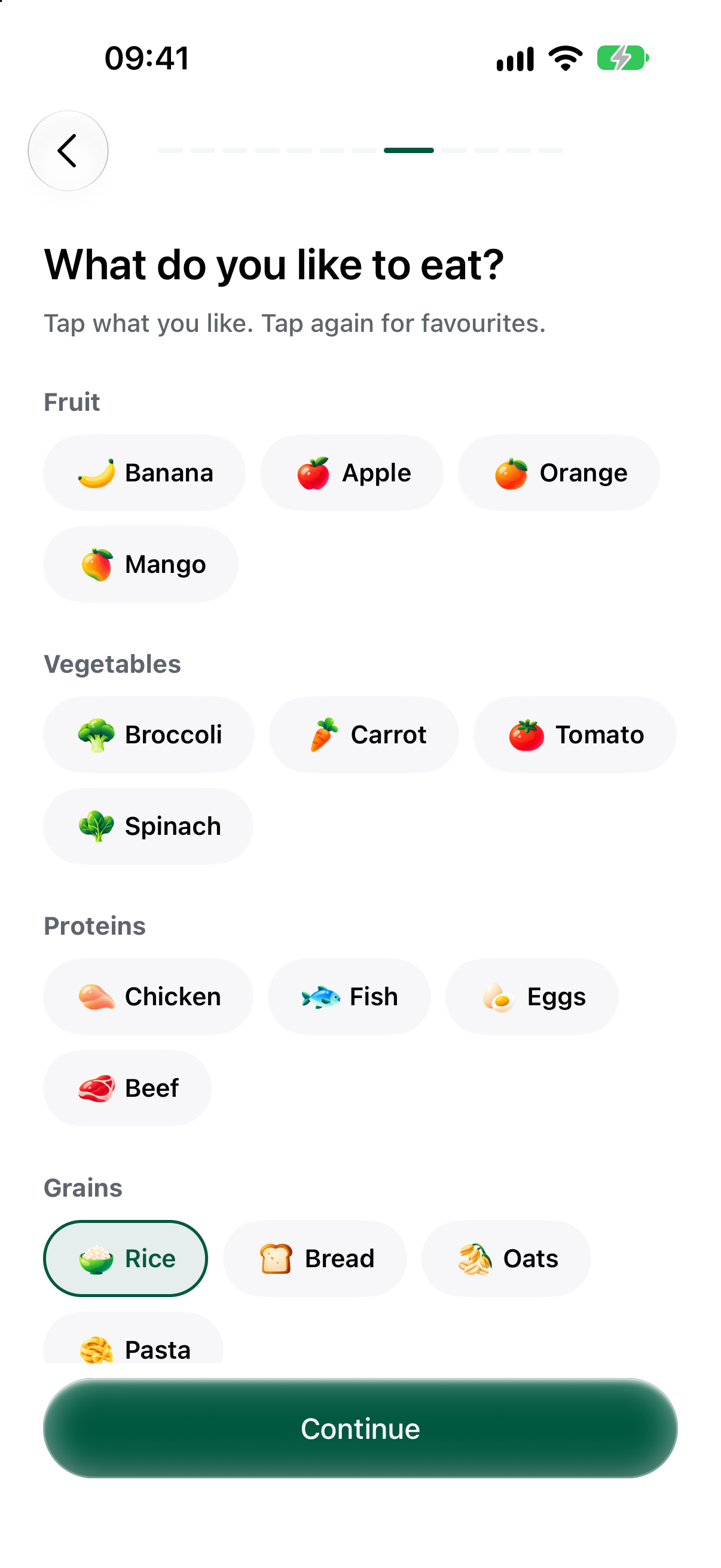
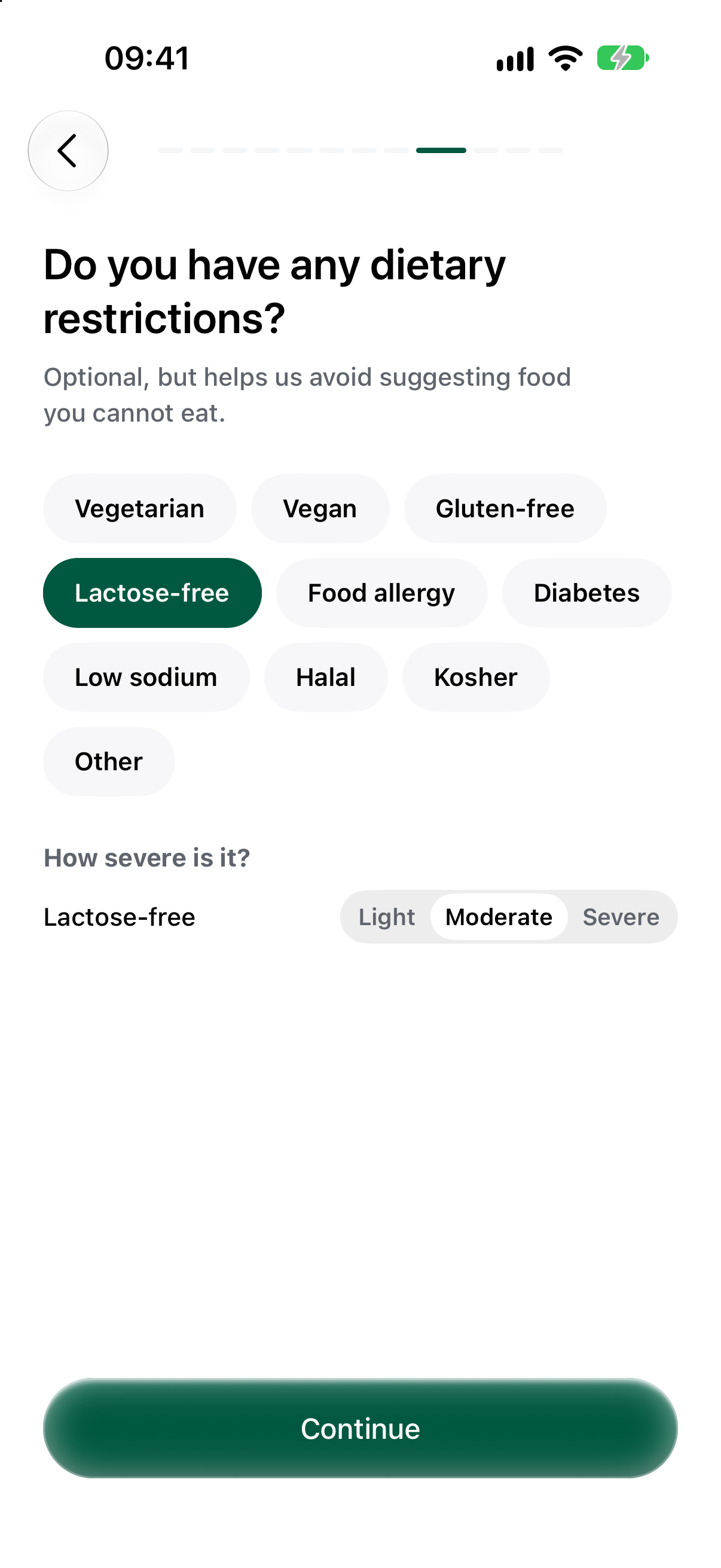
Onboarding asks about goals, activity, food preferences and restrictions, one question at a time. These answers give Nutri context before it proposes meals.
Food preferences are more expressive than a yes or no. Tap an ingredient to say you like it; tap again to mark it as a favourite. Restrictions are separate, with a severity setting where relevant.
What someone enjoys and what they need to avoid are different inputs. Keeping them separate makes the choices easier to understand.
The setup can also include a household. Other people can be added by name, with their own preferences and restrictions, without each person needing an account. When creating a plan, you can choose which household members to include.
Learn the flow by doing it
The questionnaire leads directly into a guided first plan. Instead of finishing setup and leaving someone at an unfamiliar dashboard, the tour walks through the next useful actions: create a plan, add its ingredients to shopping, activate it, and try marking a meal as completed.
The recording below follows the full journey, including the optional household questions. Use the chapters to move between the questionnaire and the tour.
The final step uses a disposable meal preview. Trying the completion action does not change the real plan’s progress. A small celebration then marks the end of the tour.
Turn preferences into a plan
Creating a plan starts with practical choices: a week, a fortnight or a month; the number of meals per day; and when to prepare leafy vegetables. An optional budget is entered in meticais. Special requests add context such as quick dinners or familiar ingredients.
Generation runs as a background job with progress stages, so the app can show what is happening while the plan is prepared. It selects recipes from the catalogue and arranges them around the profile and planning choices.
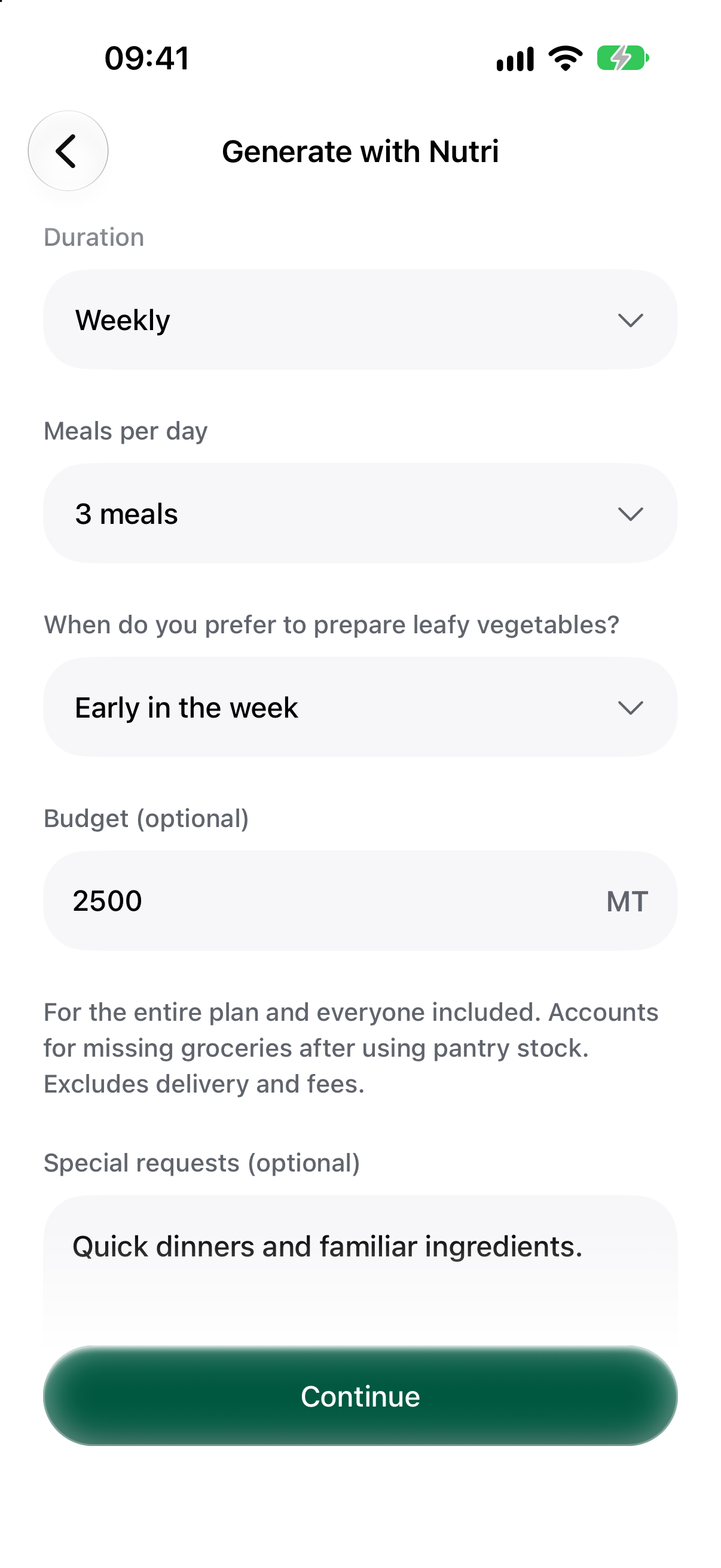
AI generation is one route into a plan. The app also supports building one manually and exploring plans shared by the community. Importing from another service is marked as coming soon in the version shown here.
How the generator builds a plan
Generation combines AI assistance with backend planning and validation. Nutri uses food preferences and requests to help assess recipes from the catalogue. The backend organises the meals into a calendar, handles household portions and checks the plan against dietary restrictions and other planning requirements. These checks do not certify allergy safety.
The resulting plan connects to recipe ingredients and the shopping list. Household size changes the quantities needed; pantry stock changes what remains to buy. Budget estimates show their limitations when price data is incomplete.
Explore those relationships below. Change a favourite food, adjust the servings, then check what is needed for shopping. This simplified example illustrates the effects of the inputs.
See how preferences, portions and pantry stock affect a plan.
Preferences, dietary restrictions and household size give the planner context.
Interactive illustration with fixed sample menus, quantities and prices. No AI request is made; this example does not reproduce the production algorithm.
Bring the day into focus
A weekly plan is useful for looking ahead. Home answers a smaller question: what am I eating today? Choose a date to see its meals and a summary of the available nutritional values.
Meals can be marked as completed or skipped. Skipping has a reason, such as eating out, having no time or missing ingredients.
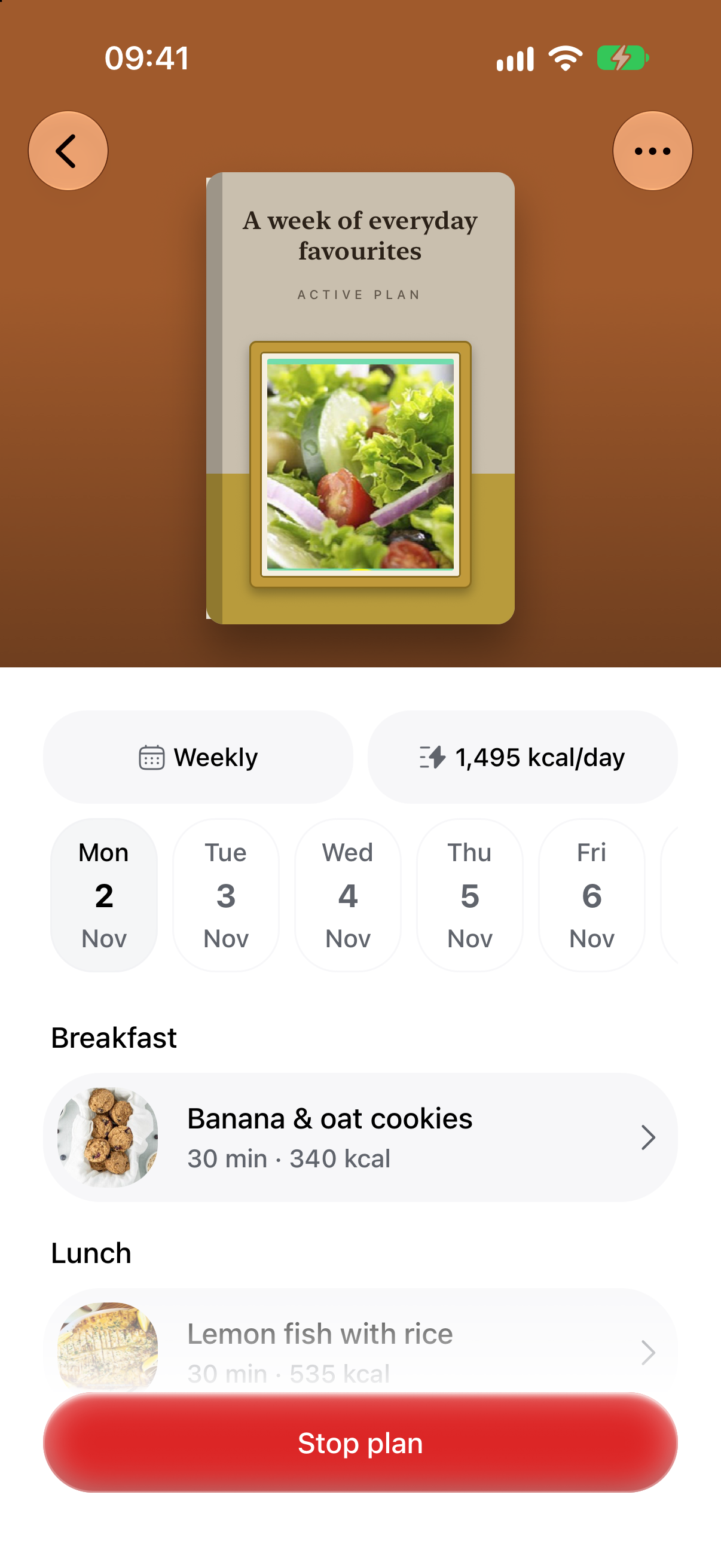
The plan detail keeps the wider schedule nearby. Switch days, open a meal, or browse its animated cookbook cover to look through the recipes.
Talk through an idea with Nutri
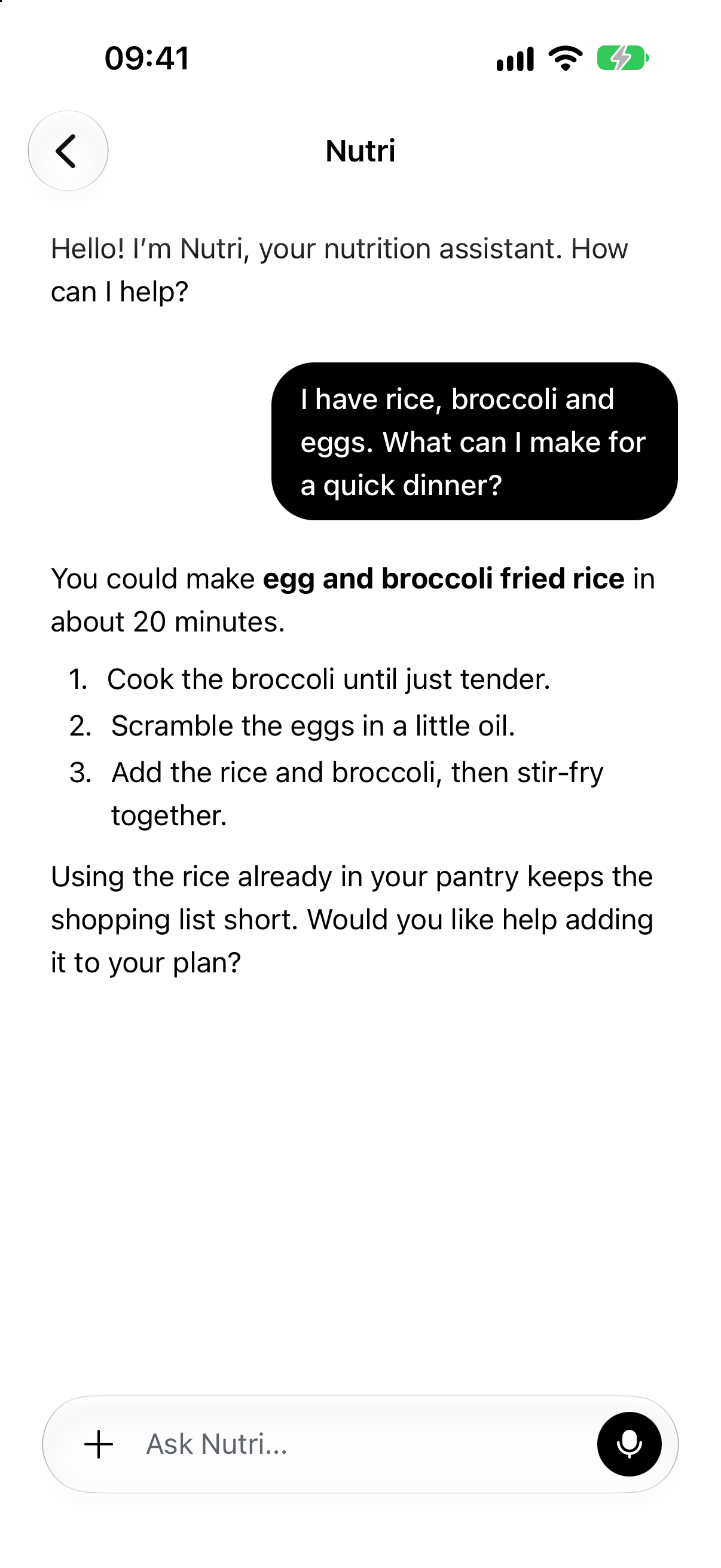
In the chat with Nutri, ask for a quick dinner using ingredients at home, or talk through a different meal idea.
Responses arrive as they are written. The composer supports text, dictation and attachments, so a question can include a photo or document as well as a message.
Find a recipe worth opening
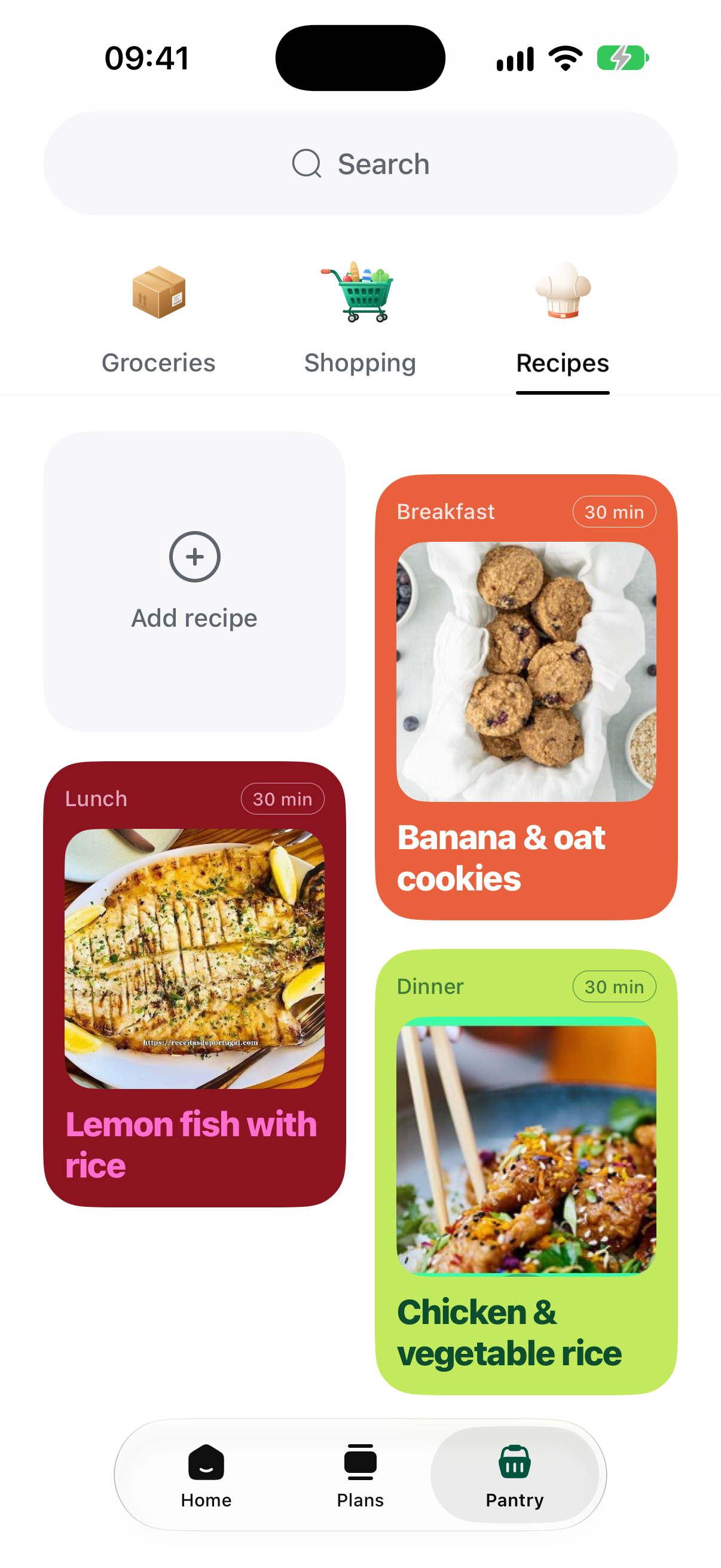
The recipe list brings together meals from the active plan, personal recipes and the recipe catalogue. A staggered card grid gives each recipe its own colour, photo and preparation-time label.
Search helps narrow the list. A long press opens actions such as favouriting a recipe or inspecting its nutrients, keeping those details accessible without adding buttons to every card.
Open a recipe and start cooking
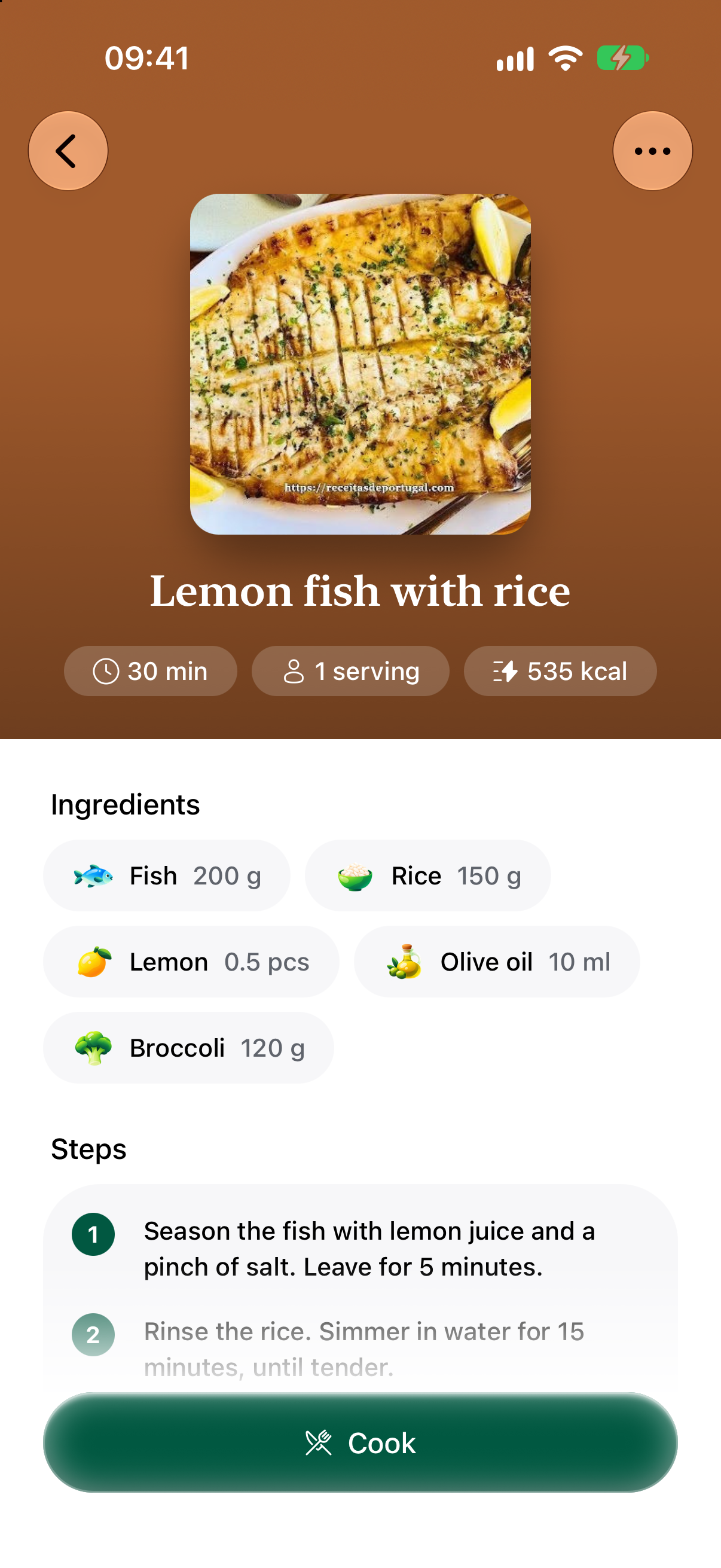
A meal opens into a recipe with a photo, preparation time, servings and energy information when available. Ingredient chips keep names and quantities together; numbered instructions explain the preparation.
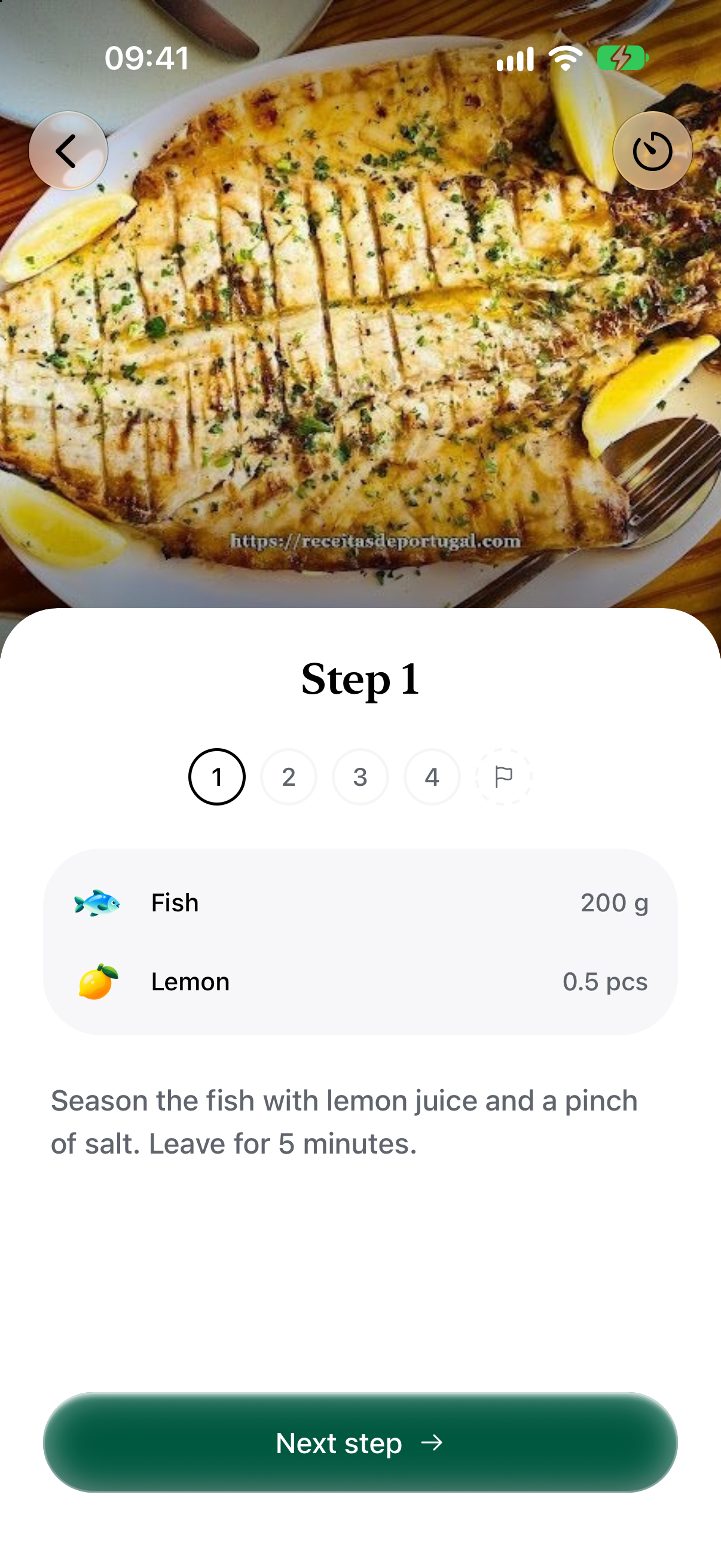
Cooking mode changes the pace. It presents one step at a time, with the ingredients for that step and controls to move forward or revisit an earlier instruction. A kitchen timer is available while cooking.
Know what the numbers describe
Nutritional information is available at two useful levels: the meal total and an individual ingredient’s quantity in the recipe. Opening an ingredient explains its contribution without leaving the recipe.
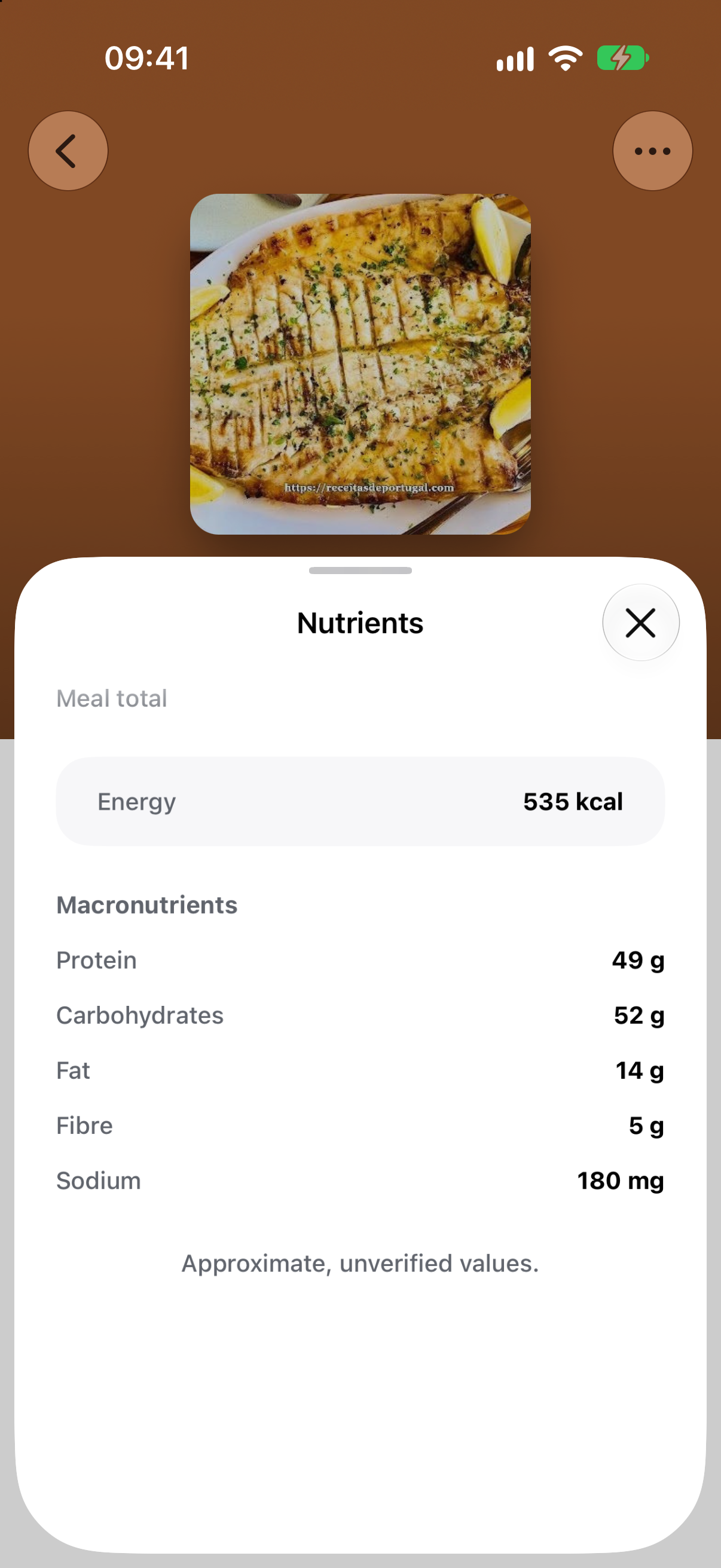
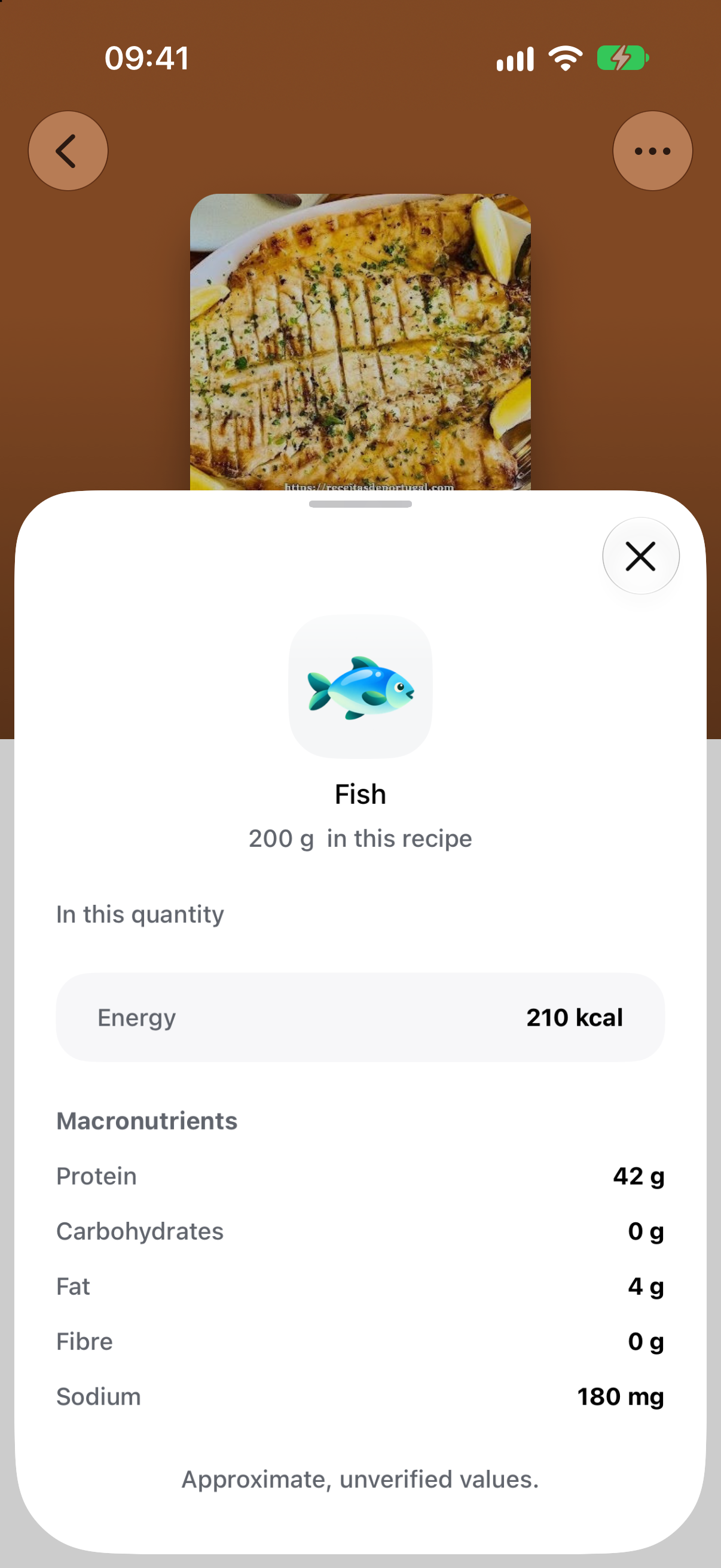
A nutritional value needs a basis: per reference quantity, ingredient amount or whole meal. NutriAgenda also distinguishes approximate, partial and unavailable information. Missing data should not look like zero.
Try that distinction below. Select an ingredient to see its sample values, then return to the whole meal.
Choose an ingredient to inspect its contribution.
Total for the whole meal
- Energy
- 535 kcal
- Protein
- 49 g
- Carbs
- 52 g
- Fat
- 14 g
Interactive illustration. Values are sample data, not a personalised nutrition target.
Check the pantry before shopping
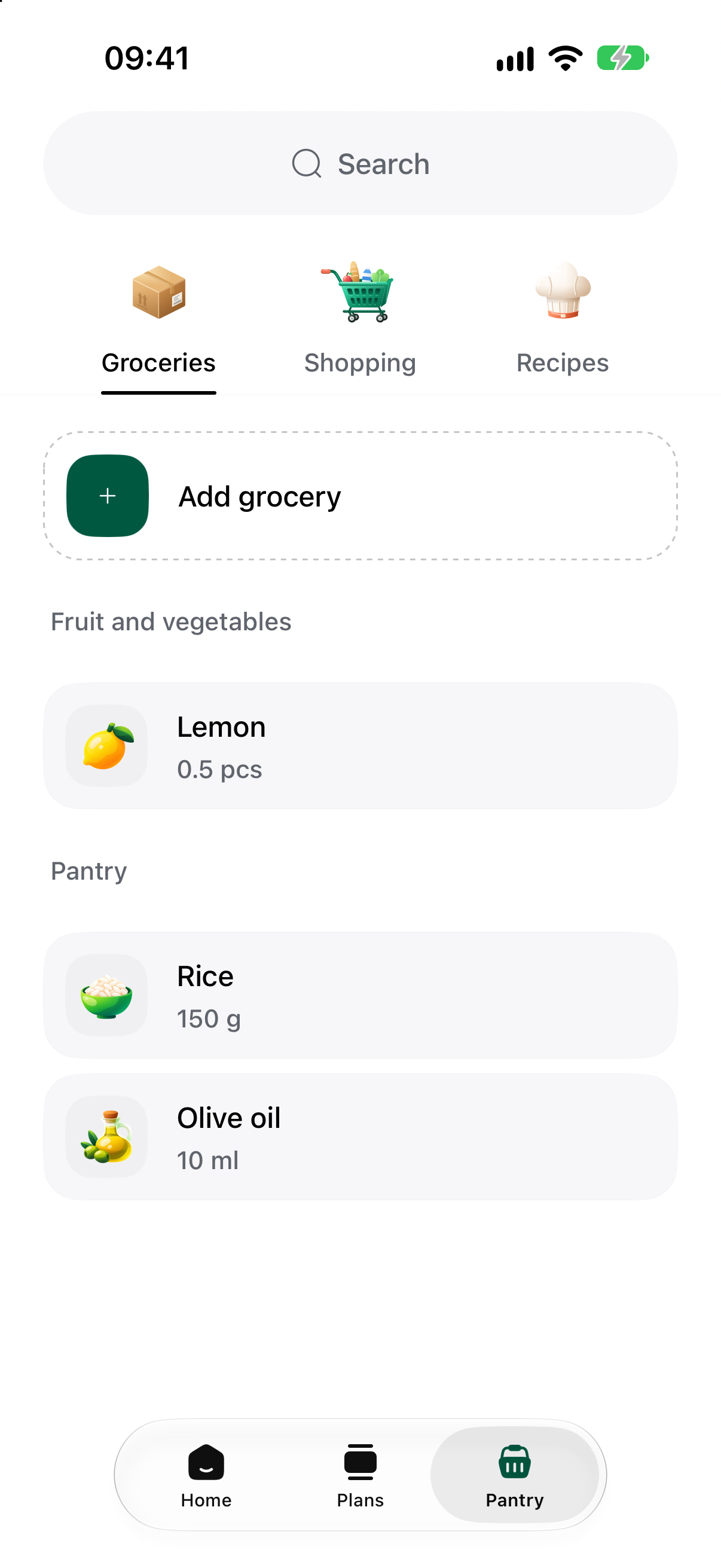
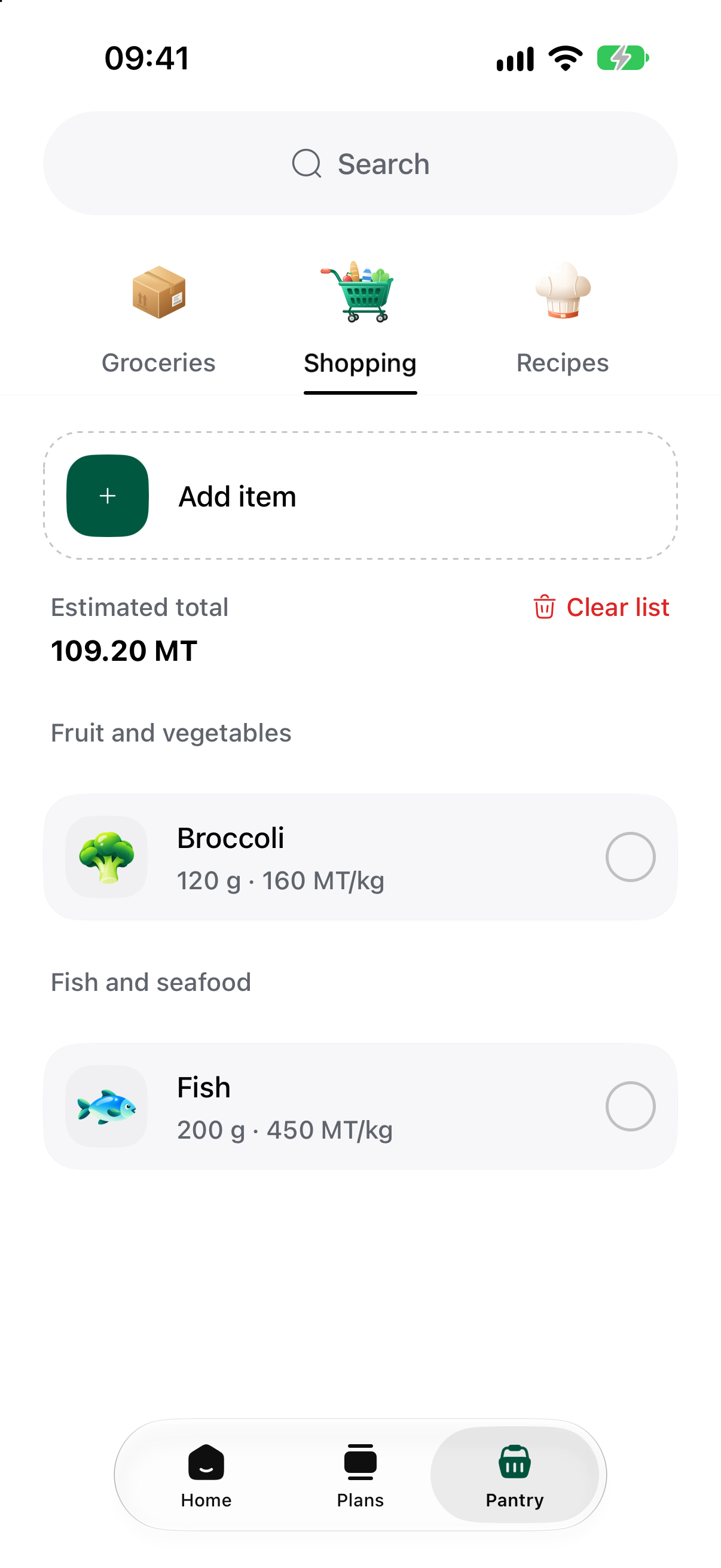
The pantry records what is already at home; the shopping list records what still needs buying. Recipes sit alongside both in the same area of the app.


Pantry stock also informs plan generation and budget estimates. A budget estimate considers missing ingredients after available stock, with coverage and limitations when prices or quantities are incomplete. It is an estimate, rather than a guaranteed checkout total.
Make waiting and starting feel considered
The quieter states are part of the experience too. While a new plan is being generated, a magnifying glass moves across illustrated ingredients. Progress and a short stage description explain the work happening behind it.
Loading an existing collection uses a different treatment. Shimmering placeholders follow the shape of the content that will appear, keeping the page recognisable while data arrives.
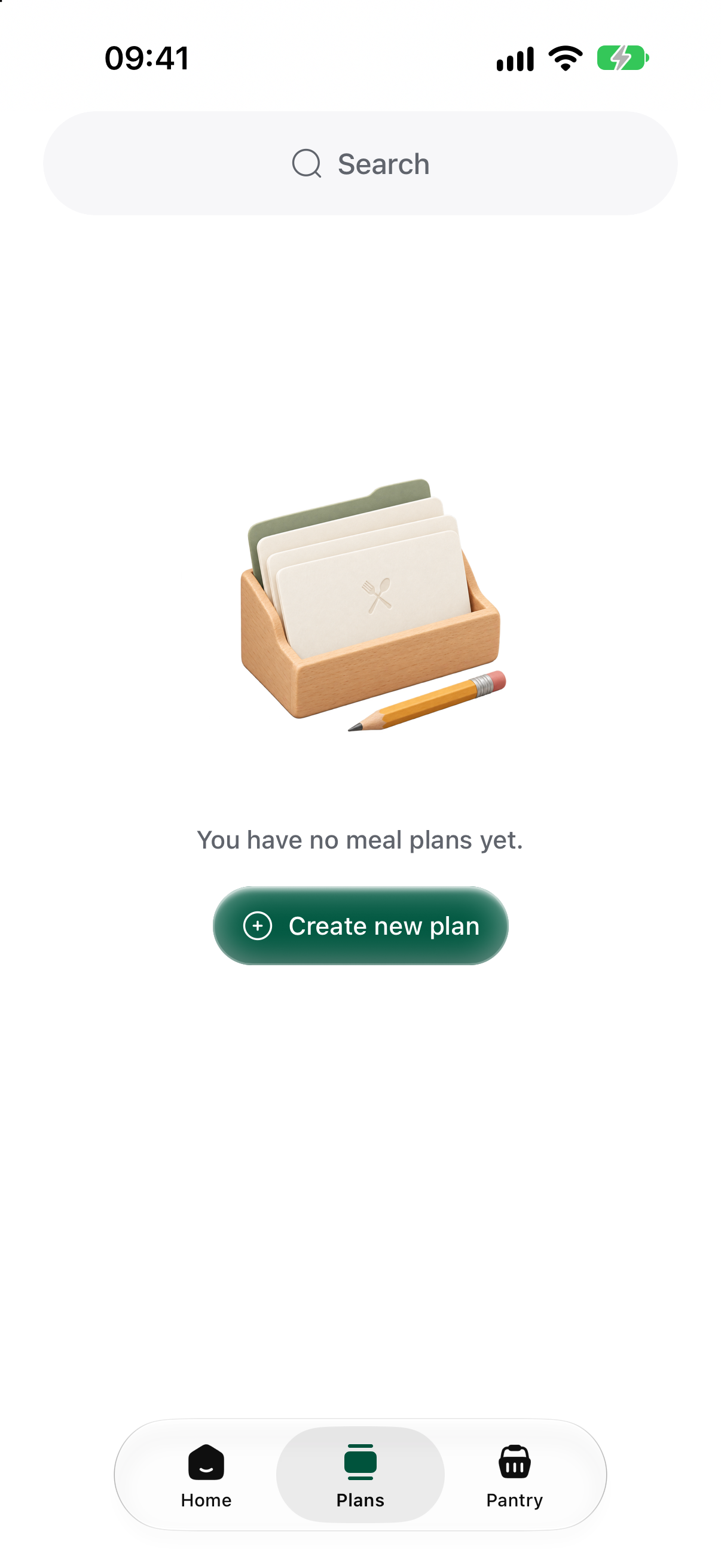
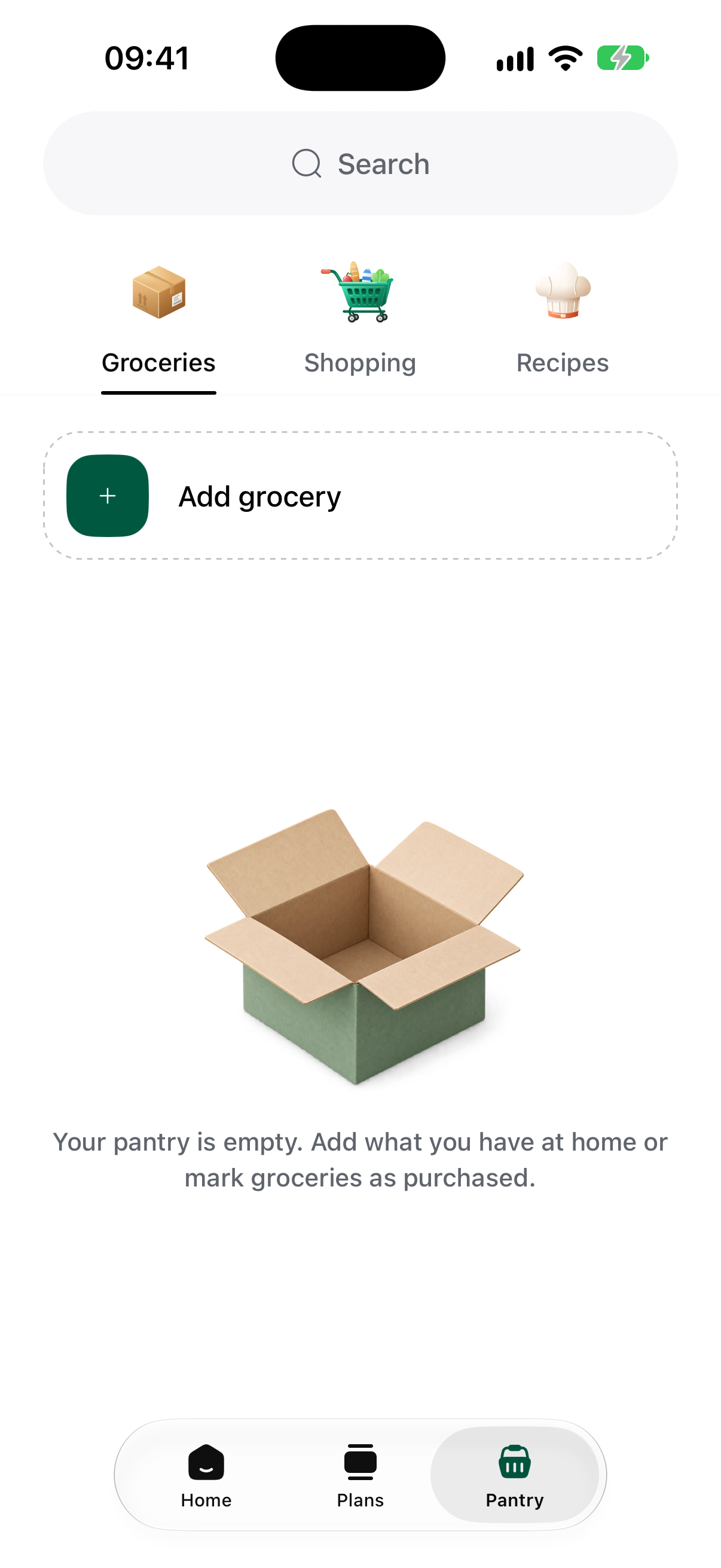
Empty screens have their own illustrations and a clear next action. With no plans, the app offers a route to create one. An empty pantry has an action to add groceries.
Read saved plans offline
The mobile app is built with Expo and React Native. Supported data is stored locally in SQLite and refreshed from the server, so previously loaded plans and recipes can be read without waiting for a new request. Supported changes can be queued for synchronisation. Generating a new AI plan still needs a connection.